Free VPN for Windows
Browse the internet with a free VPN for Windows. Get a private and secure connection on your Windows PC or laptop without complicated setup.
- Stay private while browsing
- Secure connections on public Wi-Fi
- No unnecessary ads or complicated settings
- Easy-to-use VPN connection
- Support for Windows 10 and Windows 11
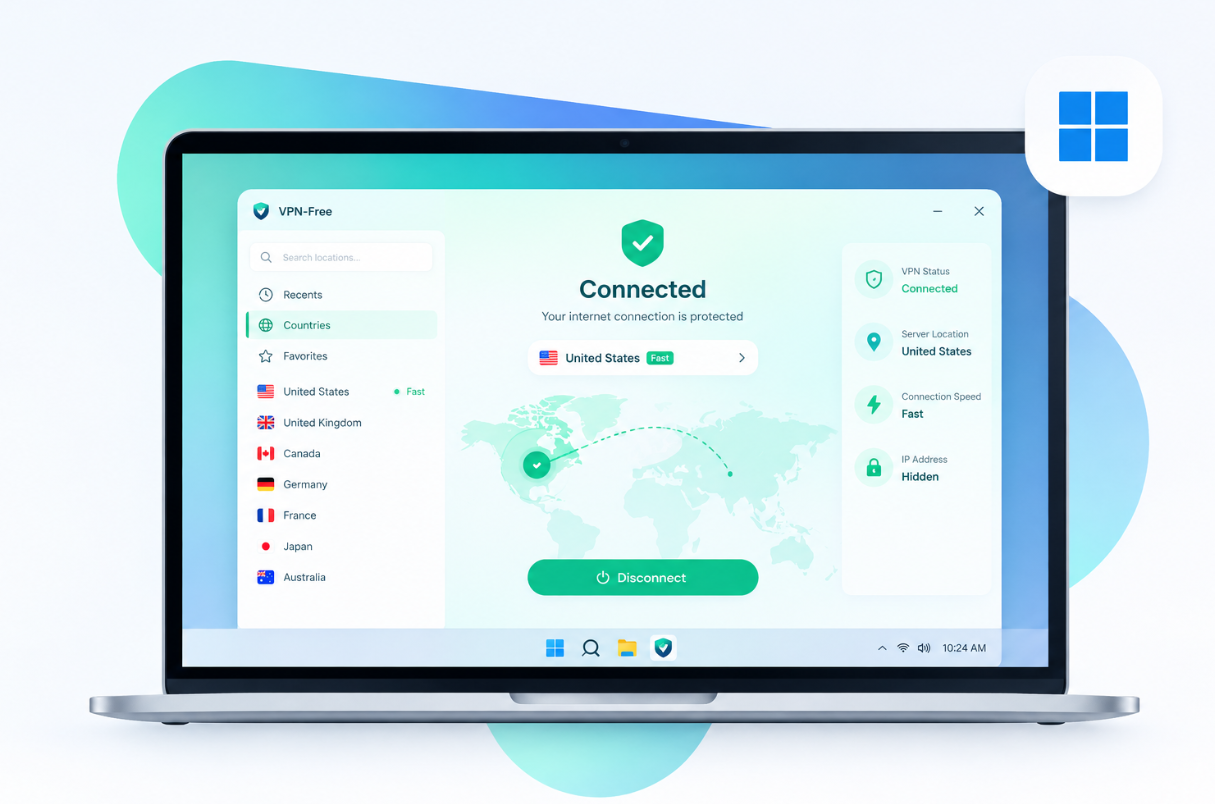
How to Connect to a VPN on Windows
After installing the application, connecting usually takes only a few steps.
- Open the VPN application.
- Select a VPN server or recommended location.
- Click Connect.
- Wait until the application shows an active connection.
- Browse the internet normally.
When you no longer need the VPN, open the application and select Disconnect.
Free VPN for Windows 10 and 11
A VPN can create an encrypted connection between your Windows device and a VPN server before your internet traffic reaches the wider internet. This can be useful when you are connected to an unfamiliar network or want more privacy while browsing.
VPN-Free is designed to provide a straightforward VPN experience on Windows without requiring complicated network configuration.
Whether you use a desktop computer or laptop, you can install the VPN, choose an available server, and establish a connection in a few steps.
Free VPN for Windows PC vs. Browser VPN
A desktop VPN and a browser-based VPN are not necessarily the same thing.
A Windows VPN application can operate at the device or network level according to its configuration, while a browser extension is generally limited to traffic handled by that browser.
For users who want VPN protection beyond their web browser, a Windows VPN application is usually the more appropriate option.
If you only want to change or protect the connection used by your browser, a browser VPN extension may be sufficient.
What to Do if the Windows VPN Is Not Connecting
A VPN connection can occasionally fail because of network conditions, server availability, firewall settings, or application problems.
Try these basic troubleshooting steps.
Check Your Internet Connection
Make sure your Windows computer can access the internet without the VPN.
If your normal internet connection is not working, reconnect to Wi-Fi or check your Ethernet connection before troubleshooting the VPN.
Try Another VPN Server
The selected server may be temporarily unavailable or experiencing heavy traffic.
If the application provides multiple locations, try another available server.
Restart the VPN Application
Close the VPN application completely and open it again.
A simple restart can resolve temporary application or connection issues.
Restart Your Windows PC
If the VPN continues to fail, restart Windows and try connecting again.
Check Windows Firewall or Security Software
Firewall and security applications can sometimes interfere with VPN software.
If you recently installed or changed security software, check whether the VPN application is being blocked.
Do not disable security protection permanently just to make a VPN connection work.
Update the VPN Application
Using an outdated version can cause compatibility or connection problems. Install the latest supported version when an update is available.
Frequently Asked Questions
Yes. Free VPN services are available for Windows computers. Before installing one, check its supported Windows versions, privacy policy, available features, and download source.