Free VPN for iPhone & iPad
Get VPN Free for iPhone and iPad — an easy way to protect your internet connection, browse more privately, and stay safer when using public Wi-Fi.
- Private browsing
- Free VPN for iPhone
- iPad VPN protection
- Simple iOS & iPadOS setup
- Secure public Wi-Fi
Free to use · No ads · No speed limits · Open source · Easy setup
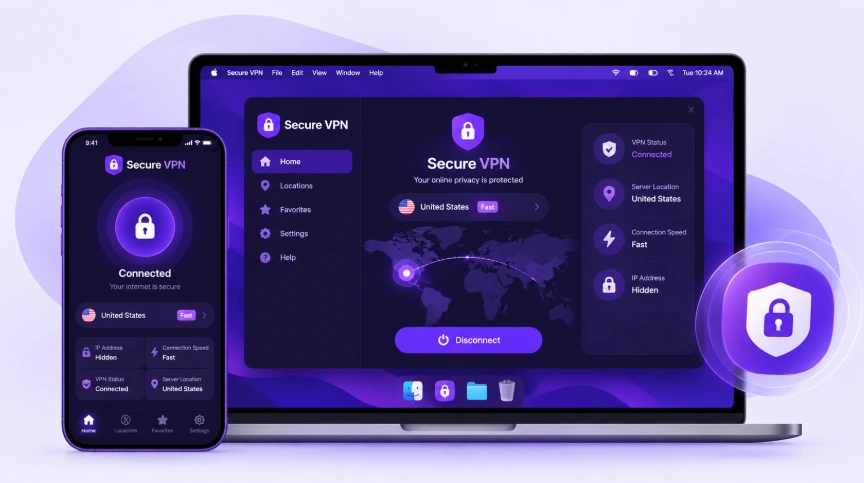
How to Connect to Proton VPN on iPhone (iOS) and iPad (iPadOS)
Connecting Proton VPN on iPhone or iPad is simple:
- Install the Proton VPN app from the App Store and open it.
- Sign in to your Proton account.
- Allow VPN configuration when iOS or iPadOS asks for permission.
- Choose a server or use the recommended location.
- Tap Connect to start the VPN.
Once connected, a VPN indicator will appear on your device. To stop the connection, open the app and tap Disconnect.
How to Disconnect a VPN on iPhone
You can disconnect from the VPN directly through the VPN application.
Depending on the VPN service and iOS version, you may also see VPN controls under your device's network settings.
Disconnecting the VPN does not uninstall the application or remove your account. It simply stops the current VPN connection.
If you want the VPN to be available again later, open the app and connect to a server.
VPN for iPhone vs VPN for iPad
The basic VPN experience is very similar on both devices because Apple provides VPN support through iOS and iPadOS.
| Feature | iPhone | iPad |
|---|---|---|
| VPN app | Yes | Yes |
| Encrypted VPN connection | Yes | Yes |
| Public Wi-Fi protection | Yes | Yes |
| Server selection | Yes | Yes |
| Manual VPN configuration | Supported | Supported |
| App-based connection | Supported | Supported |
The main difference is how you use the device. iPhone users often need VPN protection while traveling or using mobile and public networks, while iPad users may use a VPN more frequently for browsing, streaming, studying, or remote work.
iPhone VPN Not Connecting? Try These Fixes
If the VPN won't connect, you can usually resolve the problem with a few basic checks.
Check your internet connection
First make sure your iPhone or iPad can access the internet without the VPN.
Try opening a website using Safari or switching between Wi-Fi and mobile data.
Try another VPN server
The selected server may be temporarily busy or unavailable.
Choose another server and try connecting again.
Reopen the VPN app
Completely close the VPN app, open it again, and reconnect.
Check VPN permissions
Go to your device settings and check whether the VPN configuration has been added correctly.
If the configuration is missing or appears incorrect, reconnect through the VPN application.
Update iOS or iPadOS
Older system versions can sometimes cause compatibility problems with newer applications.
Install available system updates and make sure you're using a supported version of the VPN app.
Check another network
Some public, school, workplace, or restricted networks may block or interfere with VPN connections.
Try connecting through another Wi-Fi network or cellular data to determine whether the network is causing the problem.
Can I Use a VPN on iPhone While Traveling?
Yes. A VPN can be particularly useful when traveling because your iPhone may connect to many unfamiliar networks during a trip.
You can use a VPN when connecting through hotel Wi-Fi, airport networks, cafés, coworking spaces, and other public hotspots.
Before traveling, it's a good idea to:
- Install the VPN app before leaving home.
- Sign in and make sure your account works.
- Test a VPN connection.
- Keep the application updated.
- Remember that a VPN does not replace local laws or network restrictions.
Testing the connection before your trip means you won't have to troubleshoot the installation when you are already away from home.
Frequently Asked Questions
Yes. Several VPN providers offer free plans for iPhone and iPad. A free plan can be enough for basic privacy protection, especially when using public Wi-Fi.