Free unlimited VPN for Mac
Get Proton VPN — an easy-to-use VPN app that is open source, unlimited, and free
- Keep your internet activity private
- Bypass government censorship
- Stay safe on public WiFi
- Protect yourself with Swiss privacy laws
- No ads, online tracking, or speed limits
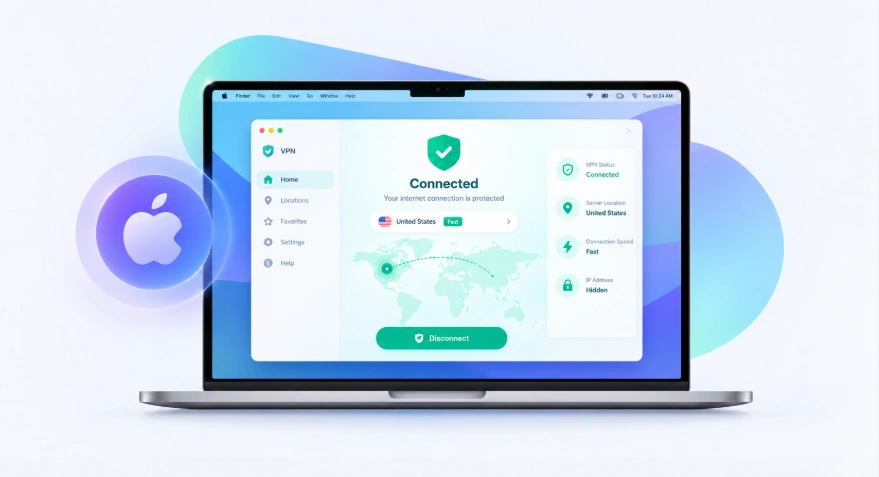
How to Install VPN Free on macOS
Installing a VPN on a Mac generally involves downloading the appropriate application or configuration, installing it, and then connecting to an available VPN server.
Download VPN Free for Mac
Download the Mac-compatible version from the official VPN Free website.
Install the application
Open the downloaded installation file and follow the macOS installation instructions. Depending on the version of macOS and the installation method, you may need to allow the application or VPN configuration in System Settings.
Allow VPN access
macOS may ask you to approve the VPN configuration before the connection can be established. Review the requested permission and approve it if you trust the application and its source.
Connect to a VPN server
Open VPN Free, choose an available server, and start the connection. Once connected, your Mac's network traffic will be routed through the VPN connection.
Check your connection
After connecting, open a browser and visit a trusted IP-checking service to verify that the VPN connection is active.
VPN Free for macOS
VPN Free provides a simple way to route your Mac's internet traffic through a VPN connection. It can be useful when you're connected to public Wi-Fi, traveling, working remotely, or simply want an additional layer of privacy while browsing.
The service is designed for modern Mac computers, including MacBook Air, MacBook Pro, iMac, and other compatible Mac devices.
Supported Mac Devices
- MacBook Air
- MacBook Pro
- iMac
- Mac mini
- Mac Studio
- Other compatible Mac computers
VPN Free Not Connecting on Mac?
If the VPN does not connect correctly, try these basic troubleshooting steps:
Check your internet connection
Make sure your Mac can access the internet without the VPN enabled.
Try another VPN server
The selected server may be temporarily unavailable or experiencing heavy traffic. If multiple servers are available, try another location.
Restart the VPN application
Close the VPN application completely and open it again before attempting to reconnect.
Check macOS permissions
Open your Mac's VPN settings and check whether the VPN configuration has been added and authorized correctly.
Update macOS and the VPN application
Using an outdated version of macOS or the VPN software can sometimes cause compatibility or connection problems.
Is VPN Free Safe to Use on Mac?
A VPN can improve network privacy, but users should still understand what a VPN does and does not protect.
A VPN can help secure the connection between your Mac and the VPN server, but it does not automatically protect against malware, phishing websites, weak passwords, browser fingerprinting, or every type of online tracking.
Before installing any VPN software, users should also review its privacy policy, permissions, logging practices, and the source of the download.
Why Use a VPN on Mac?
A VPN may be useful for Mac users who:
- Frequently use public Wi-Fi
- Work remotely
- Travel with a MacBook
- Want additional privacy when browsing
- Need to connect through a different VPN server location
- Prefer to manage their VPN connection directly from macOS
Free VPN for Mac FAQs
Yes, VPN services that support macOS can be used on compatible MacBook Air and MacBook Pro devices. Check the supported macOS versions before installation.